1. Install Linkeja
- Windows 10 and 11: get it from the Microsoft Store. Windows keeps it up to date for you.
- Linux (Ubuntu 22.04+, Debian 12+): download the
.debfrom the download section, or add our apt repository there sosudo apt upgradekeeps Linkeja up to date. - macOS: coming very soon. Meanwhile, use the web app.
- Any other computer: the web app works in your browser with the same account.
Open Linkeja after installing it. On Windows and Linux you'll find it in the Start menu or app list as Linkeja.
2. Create your account
The first screen asks you to sign in. If you're new, click Create account.
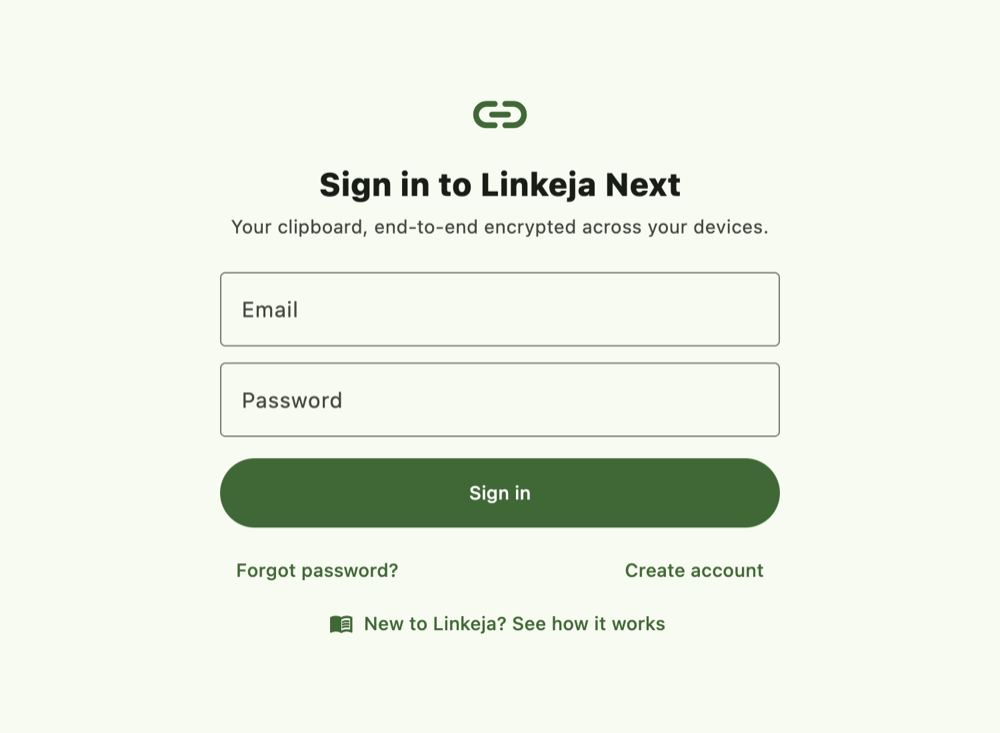
Enter your email address and choose a password (at least 8 characters), type it again to confirm, and click Send verification code.
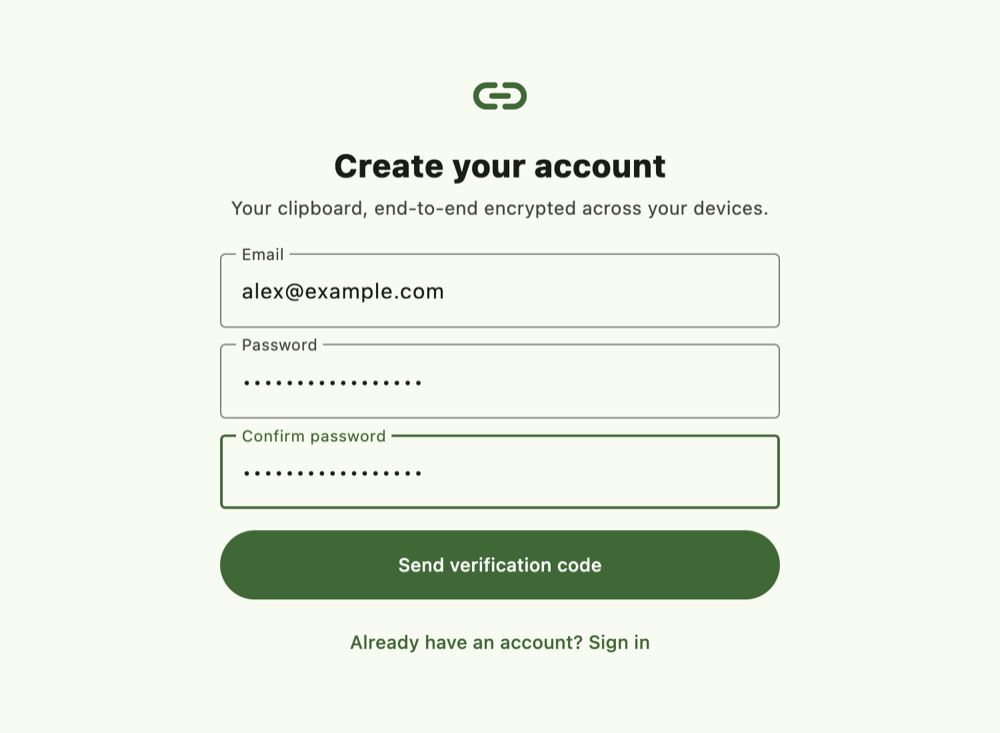
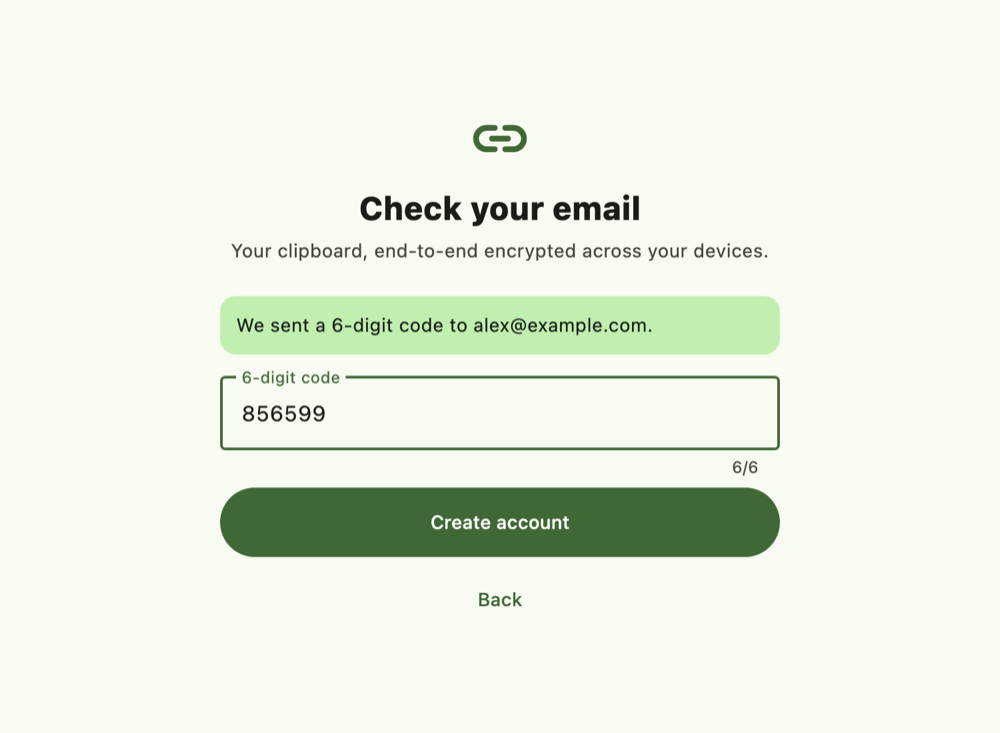
We email you a 6-digit code. Type it in and click Create account. The code works for 10 minutes; if it doesn't arrive, check your spam folder.
3. Find your way around
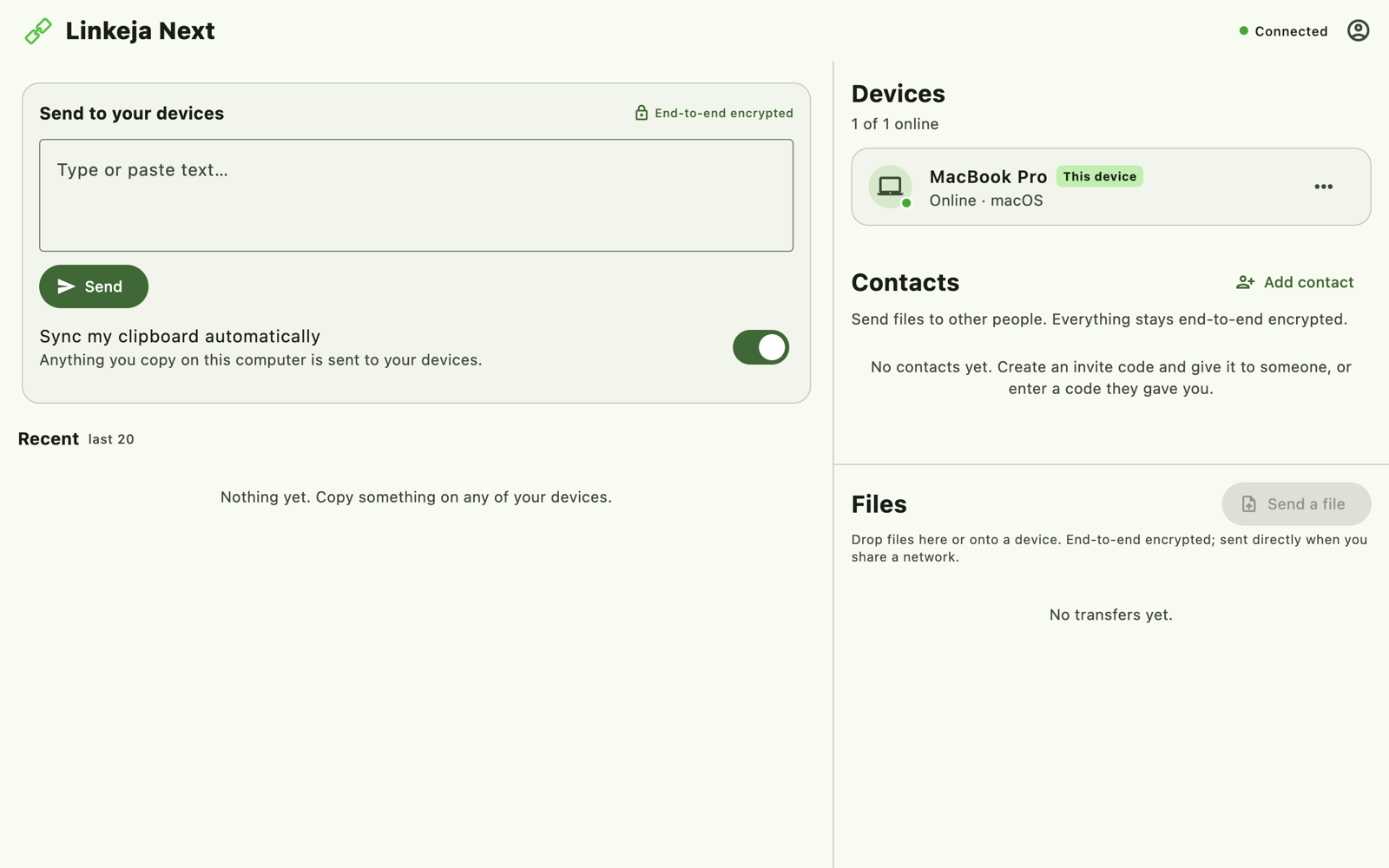
Once you're in, the main window has three parts:
- Send to your devices (left, top) — type or paste text and send it to all your devices.
- Your clipboard history (left, below) — everything you've copied or sent recently, from any of your devices.
- Devices, Contacts and Files (right) — your devices and whether they're online, the people you can send files to, and your file transfers.
The dot at the top right shows your connection: green Connected means everything is syncing. The person icon next to it opens your account menu.
4. Add your other devices
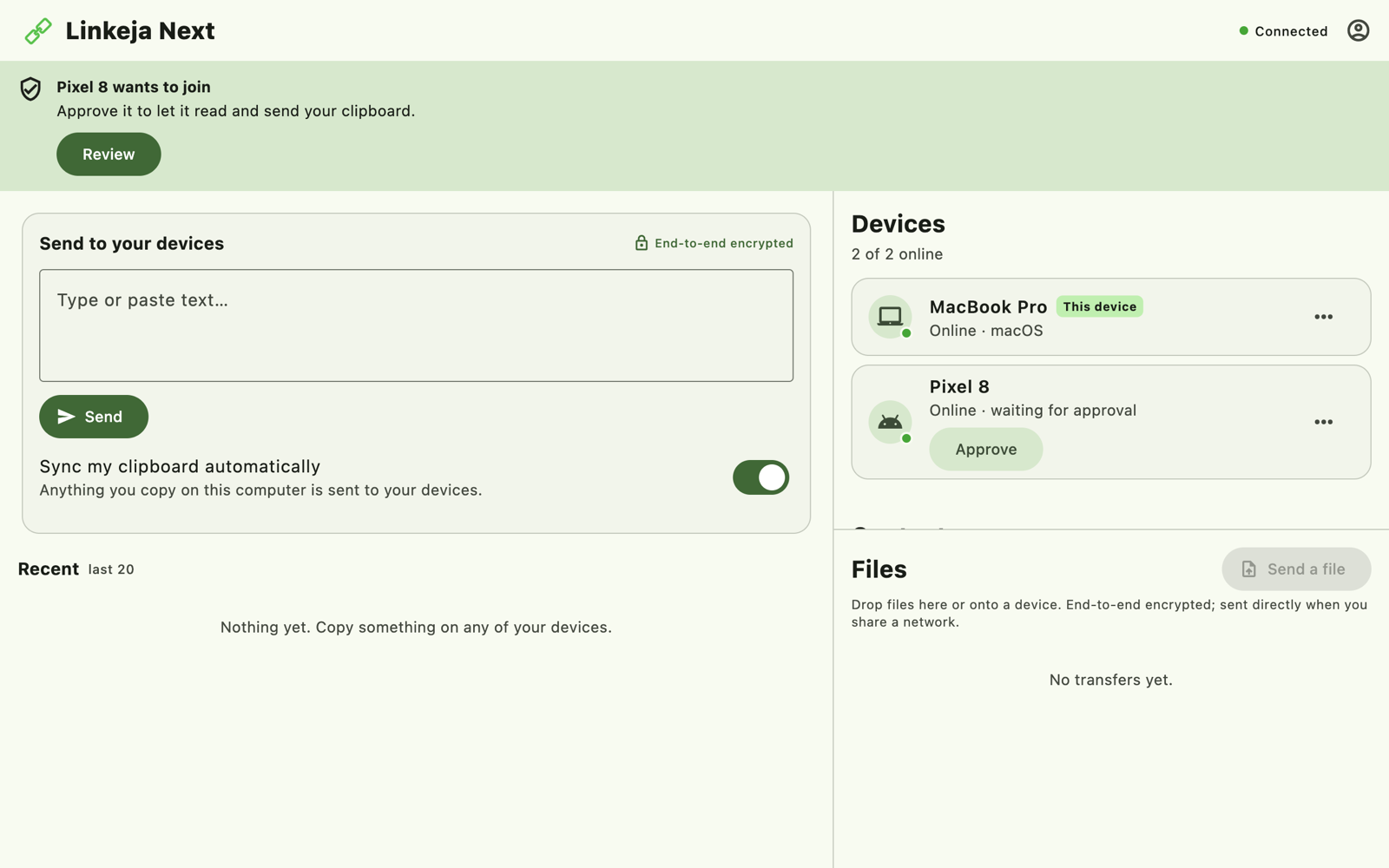
Install Linkeja on your other computer (or open the web app, or the app on your phone) and sign in with the same email and password. The new device then waits for approval — nothing is shared with it until you approve it from a device you already use.
- On the device you already use, a banner appears: “… wants to join”. You'll also hear a sound. Click Review.
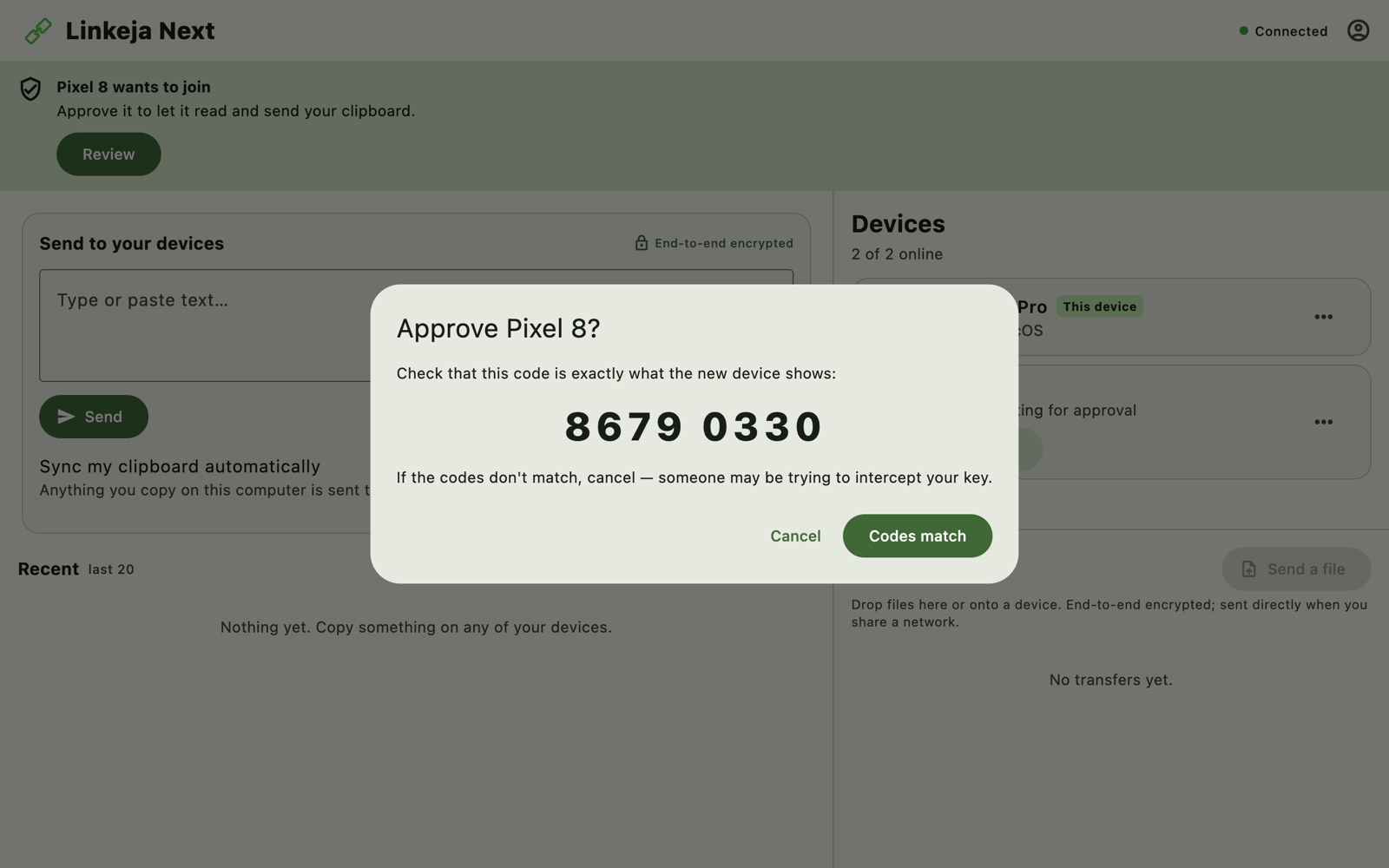
- Both devices now show an 8-digit code. Check that the two codes are exactly the same, then click Codes match.
- If the codes are different, click Cancel: someone may be trying to get into your account. Change your password.
That's it — the new device receives your encryption key and starts syncing. Add as many devices as you like the same way; any device you've approved can approve the next one.
5. Sync your clipboard
With Sync my clipboard automatically turned on (the default on computers), anything you copy on this computer is sent to your other devices, and you can paste it there right away. It keeps working while the window is closed.
To send something on purpose, type or paste it into Send to your devices and click Send.
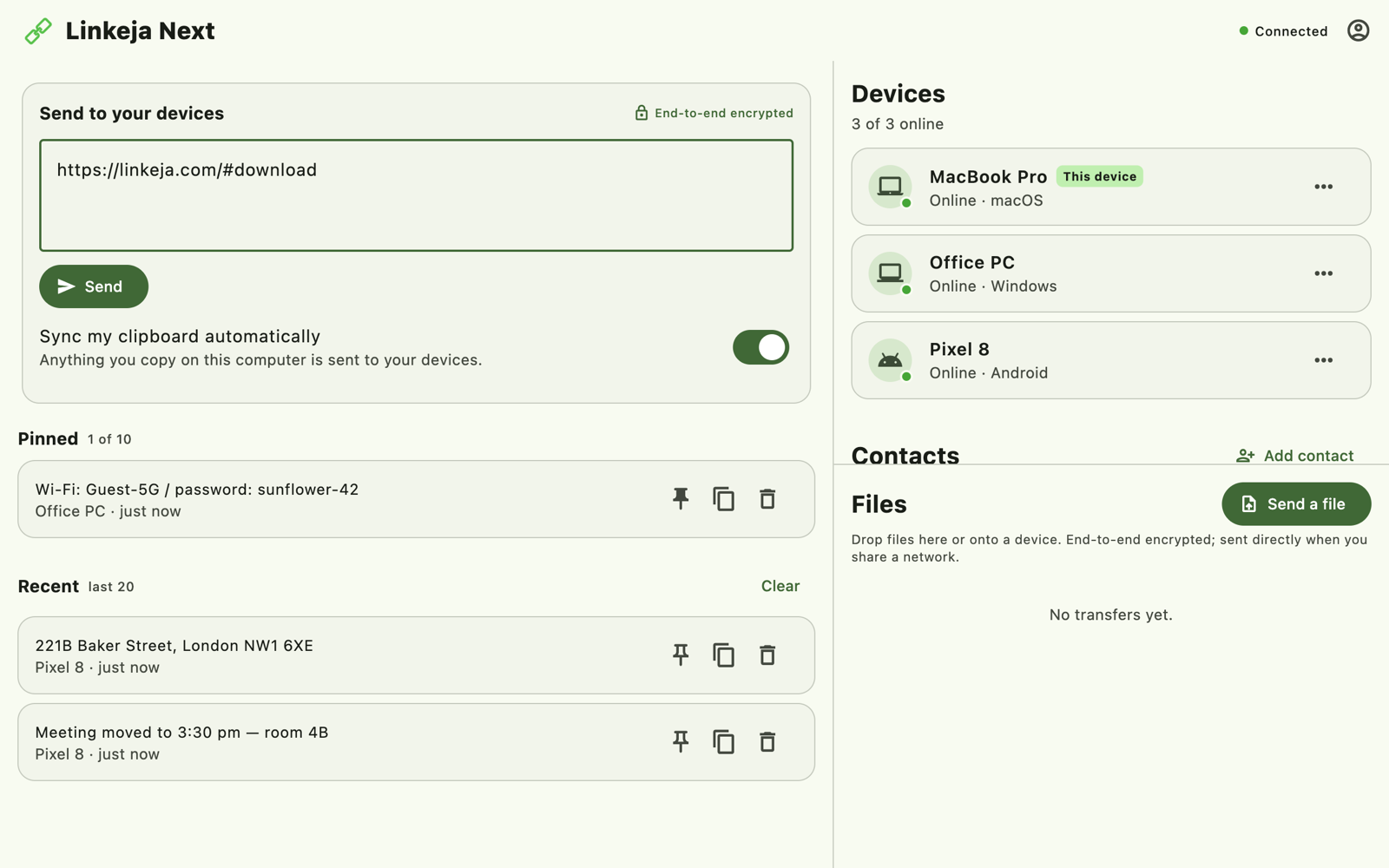
Each item in your history shows which device it came from. Next to every item you'll find three buttons:
- Pin — keeps the item at the top under Pinned until you unpin it. Handy for things you paste often, like a Wi-Fi password or an address.
- Copy — puts it back on this computer's clipboard.
- Delete — removes it from all your devices.
The free plan keeps your 20 most recent items plus up to 10 pinned ones; older items are removed automatically. Clear removes all recent (unpinned) items at once.
6. Send and receive files
To send a file to one of your devices, do any of these:
- Click Send a file in the Files area, pick the file, then choose the device;
- Drag the file onto the Linkeja window, or straight onto a device in the list;
- Open the … menu next to a device and choose Send a file…
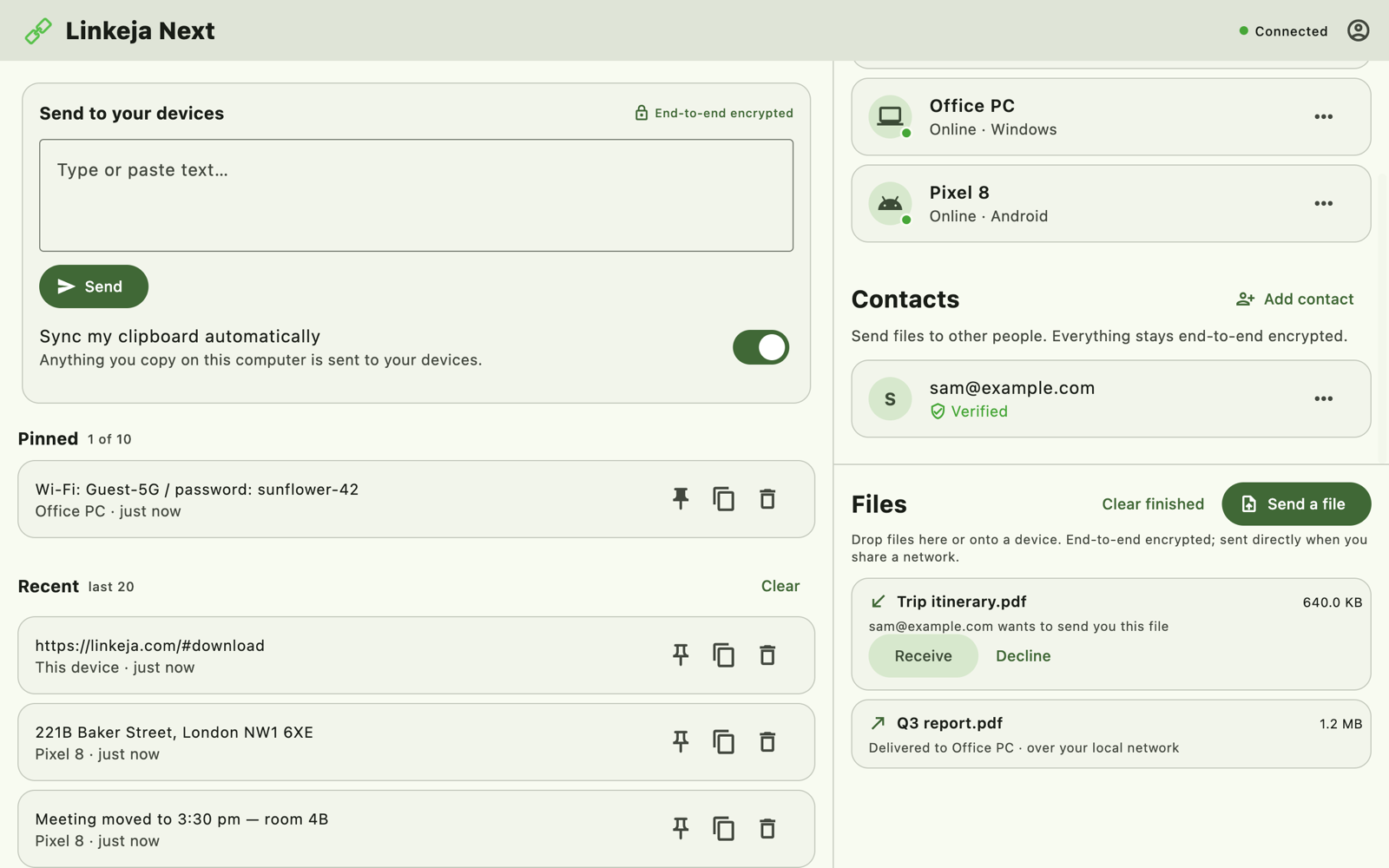
The receiving device shows the file with Receive and Decline. Nothing is downloaded until you click Receive.
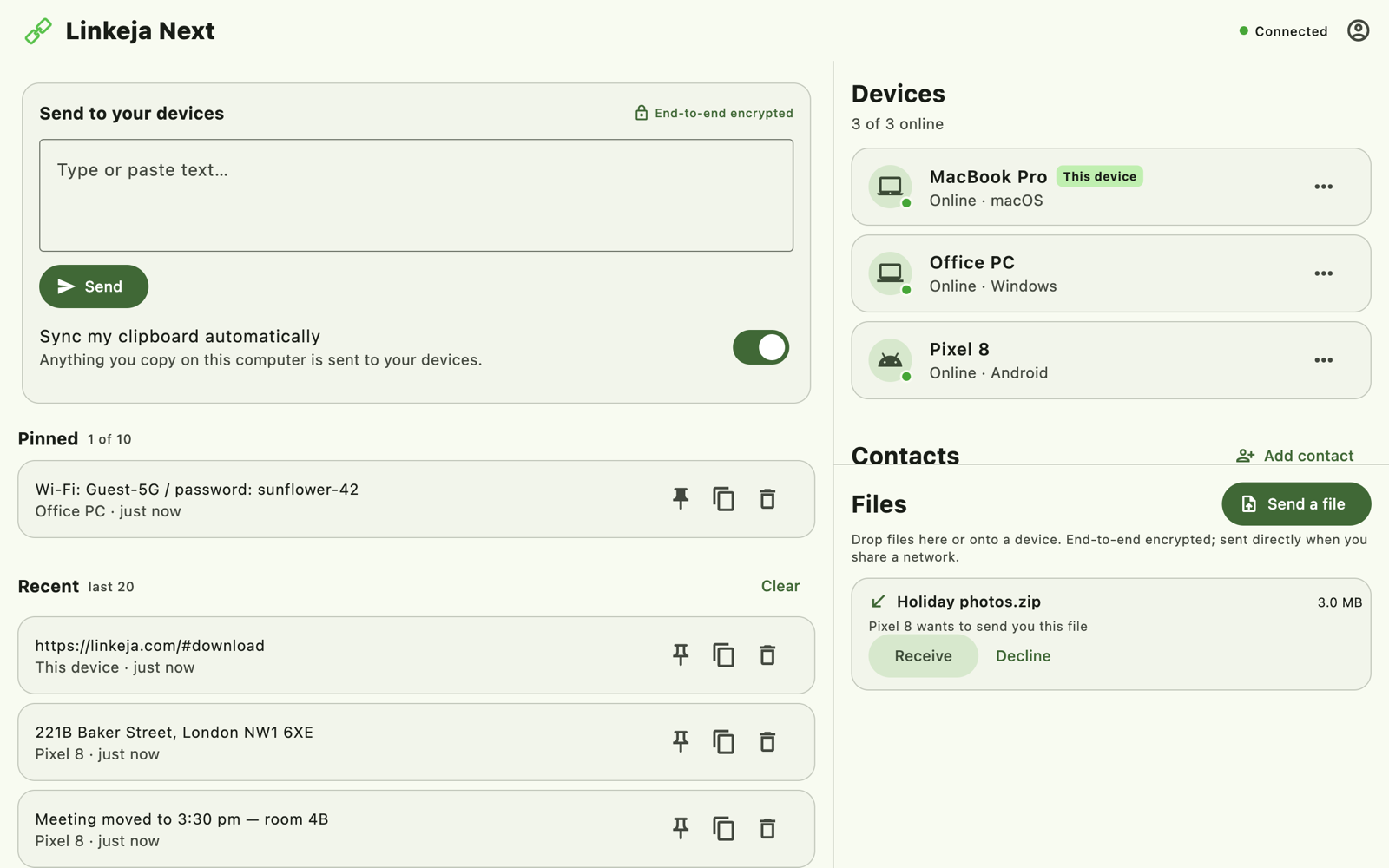
Received files go to your Downloads folder; click Show in folder to find one. When both devices are on the same Wi-Fi or network, files go directly between them — fast, and they never leave your network. Otherwise they travel through our servers, still end-to-end encrypted, and are deleted as soon as they're delivered.
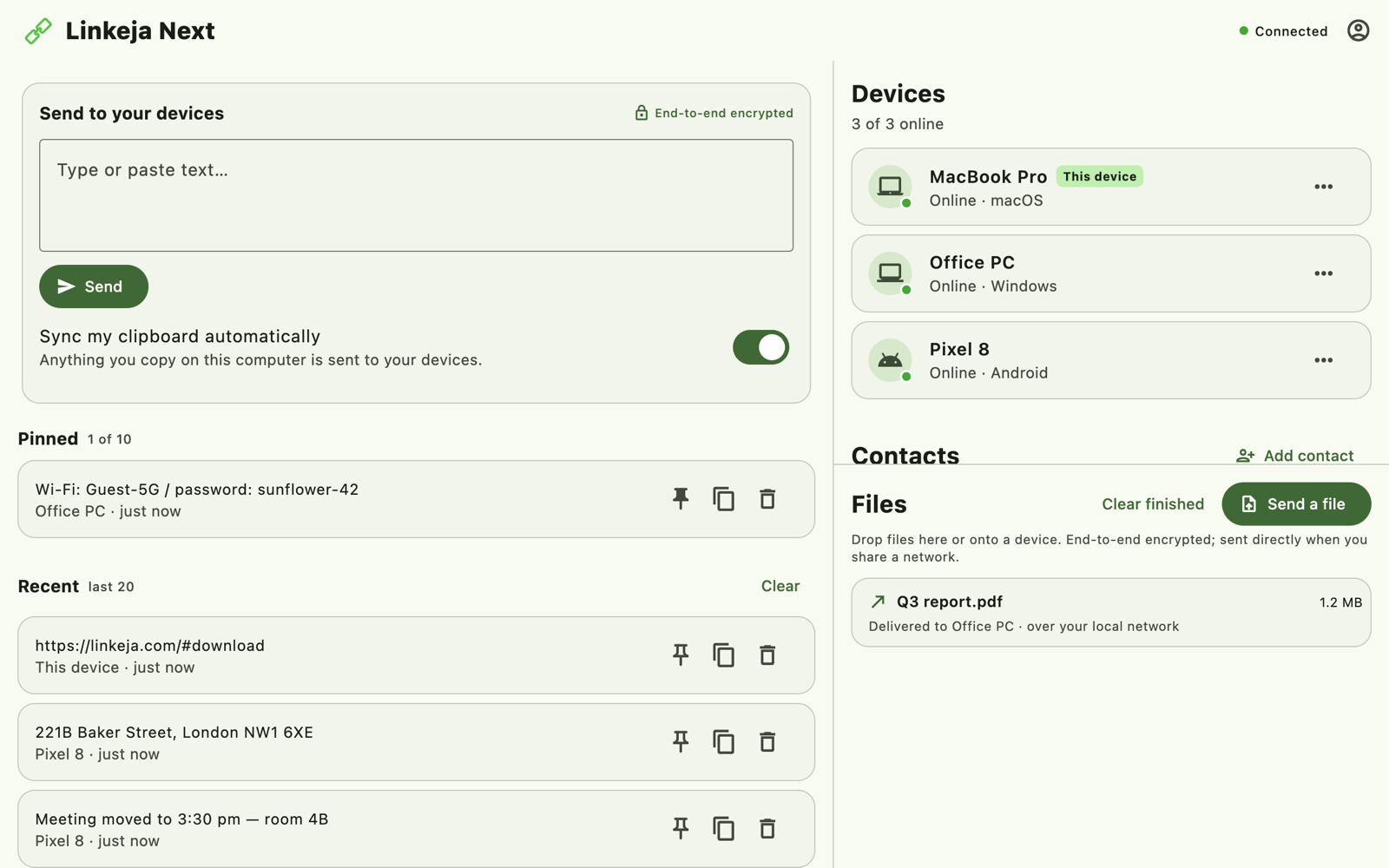
Clear finished tidies up the list. It only removes the entries — your files stay where they were saved.
7. Send files to other people
Contacts let you swap files with other Linkeja users, end-to-end encrypted. You connect once, using a one-time code you pass to each other yourselves.
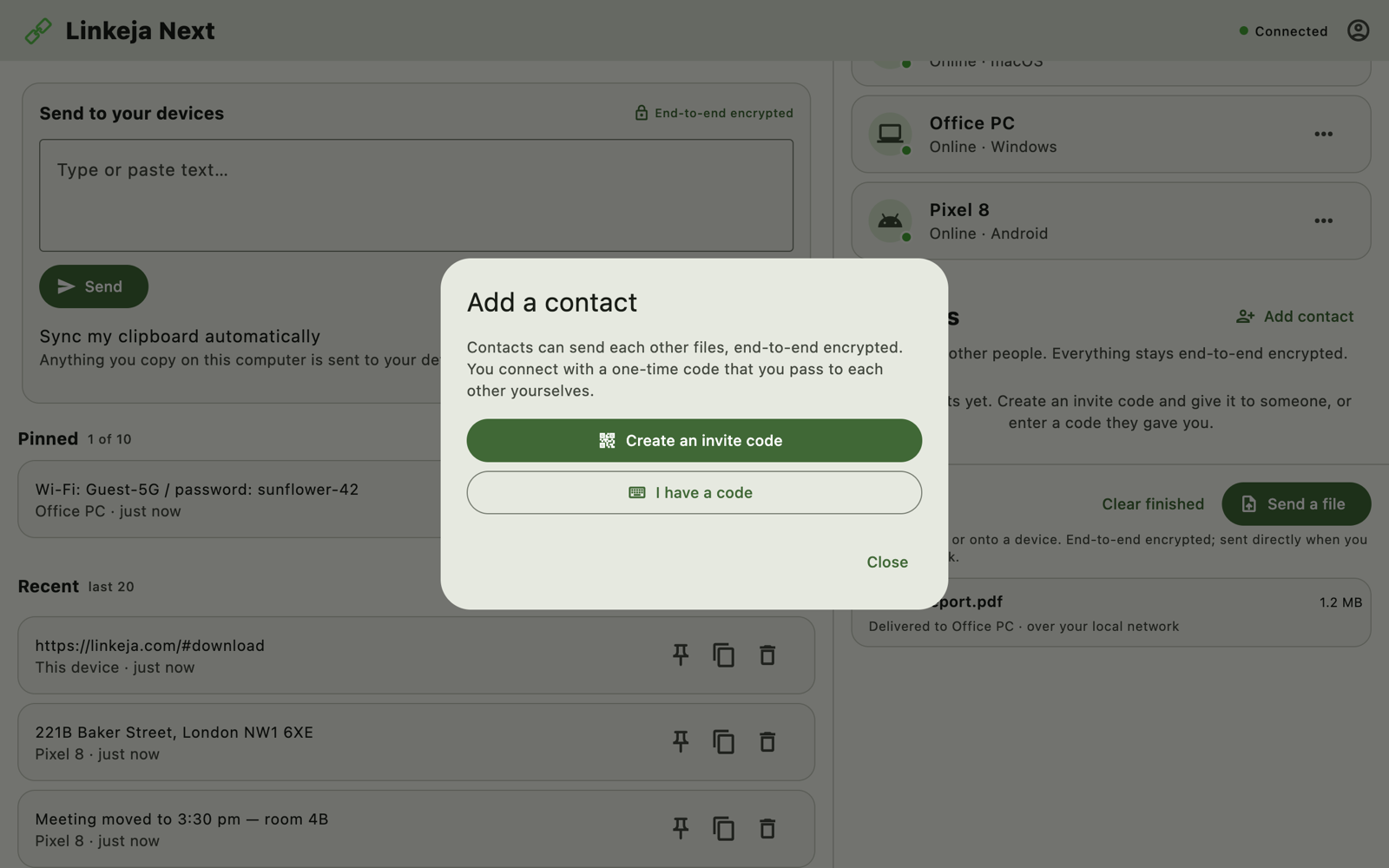
- Under Contacts, click Add contact.
- One of you clicks Create an invite code; the other clicks I have a code.
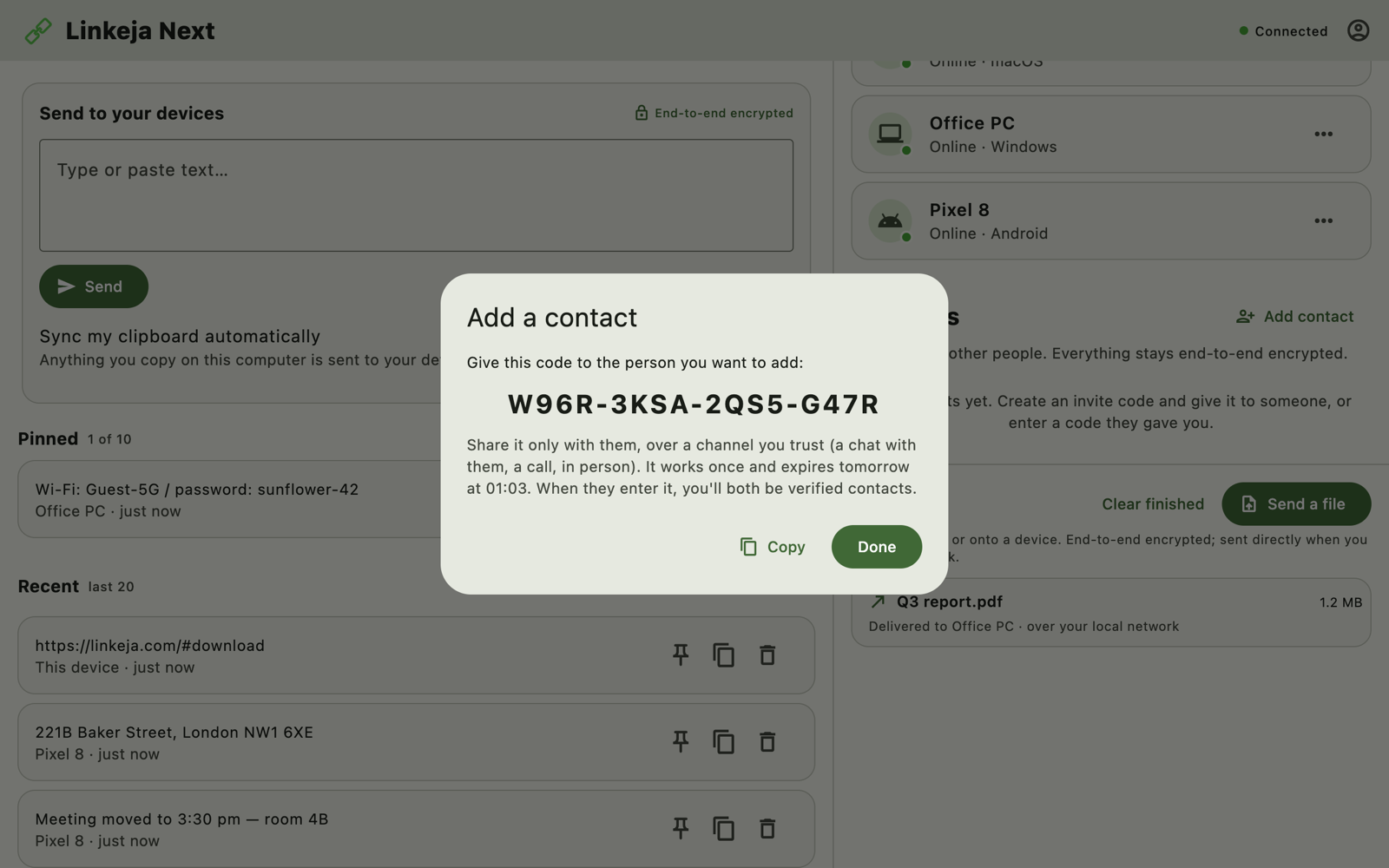
- Give the code to the other person over something you trust — a chat with them, a call, or in person. It works once and expires after 24 hours.
- They enter it, check that the email address shown is yours, and click Connect. You're now verified contacts.
To send a contact a file, open the … menu next to them and choose Send a file…. Files from contacts arrive in your Files list just like files from your own devices — you decide whether to receive them.
To stop someone sending you files, choose Remove from their … menu. They can't reconnect unless you give them a new code.
8. Manage your devices
The … menu next to each device lets you:
- Send a file… to it;
- Rename it, for example “Work laptop”;
- Remove it — it's signed out at once and stops syncing. Do this if you sell or lose a device. For the device you're using, the option is Sign out this device.
9. Settings and your account
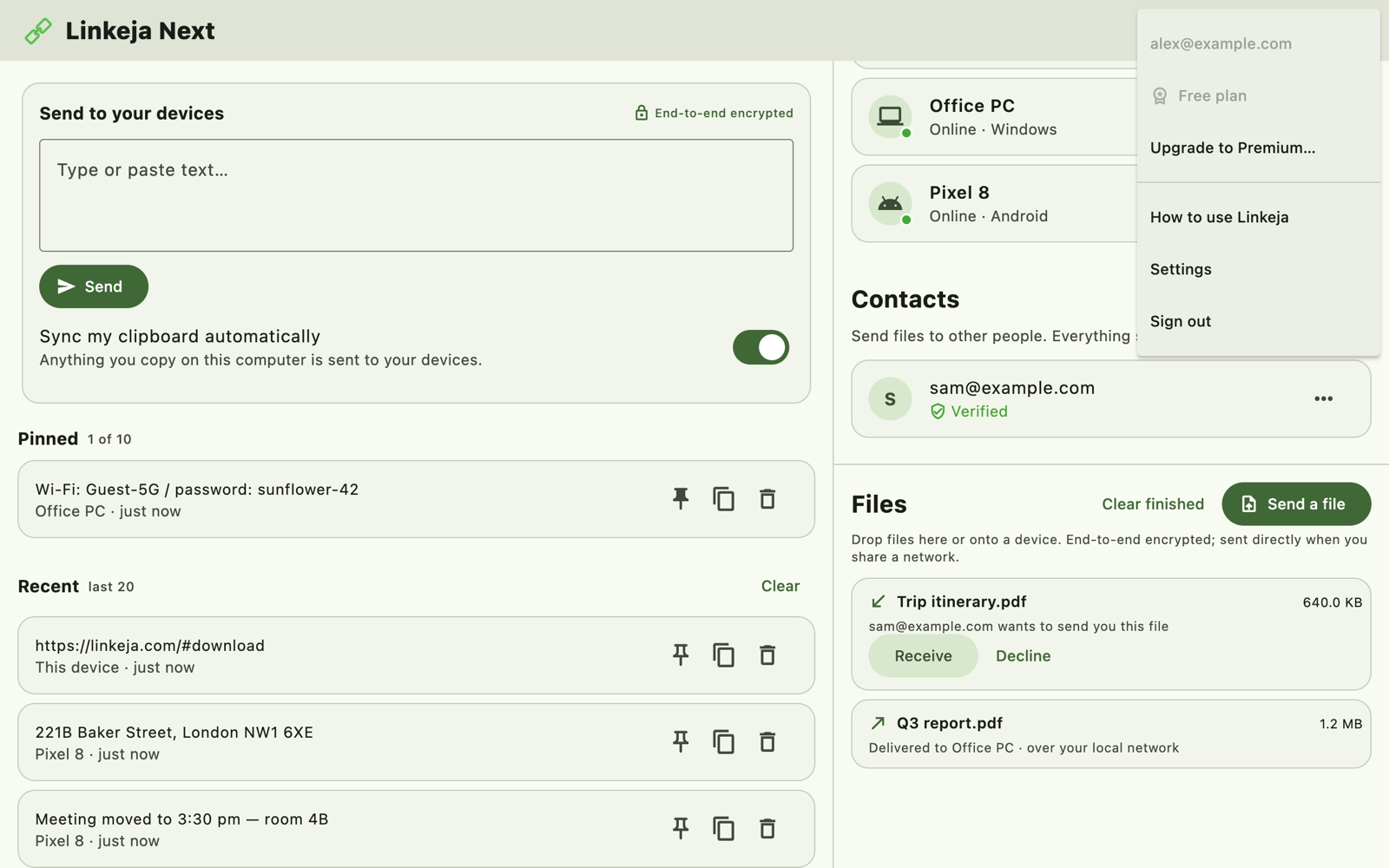
Click the person icon at the top right to see your email address and plan, open this guide (How to use Linkeja), open Settings, or Sign out.
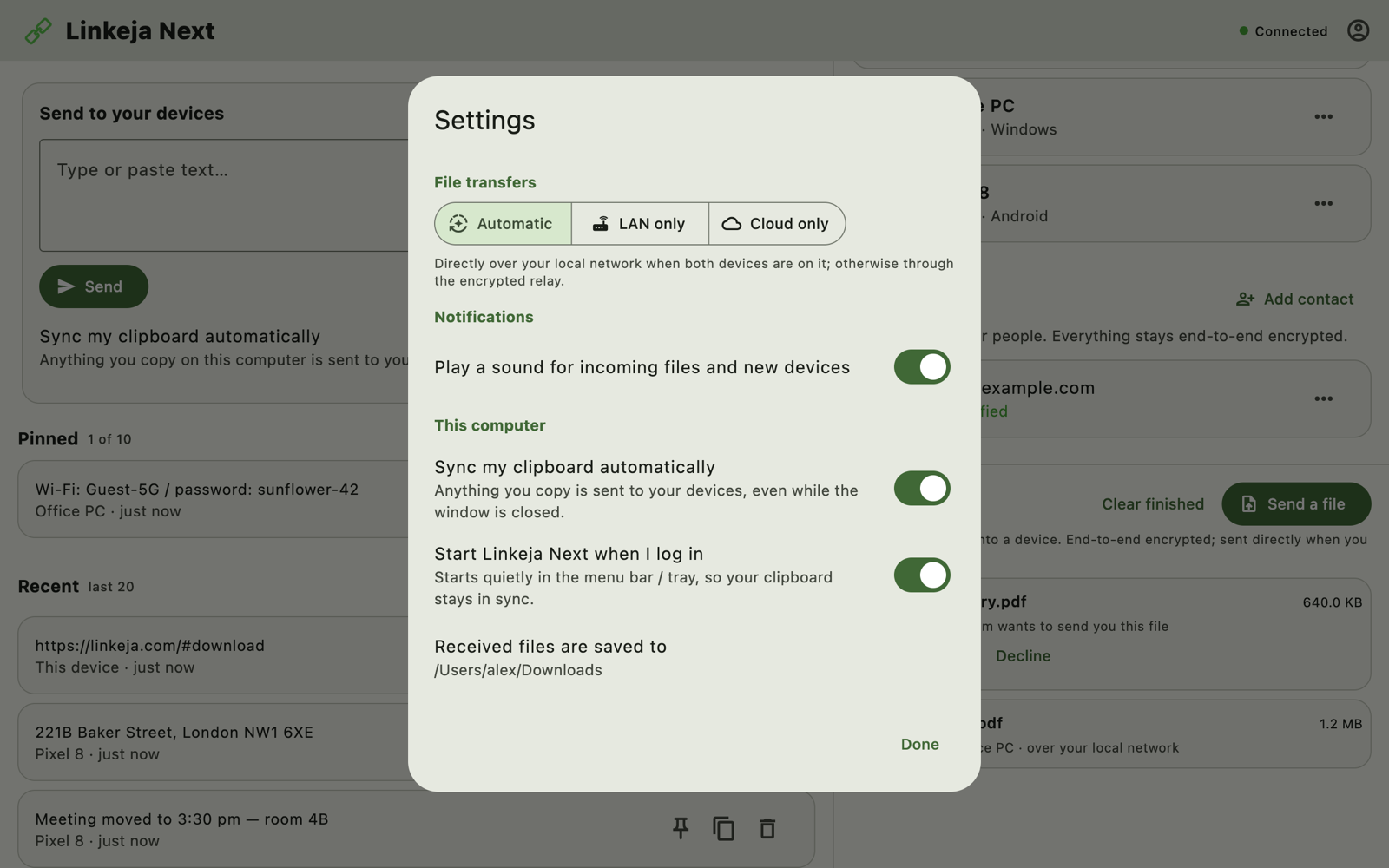
In Settings you can choose:
- File transfers — Automatic (directly over your network when possible, otherwise through the encrypted relay), LAN only (never leaves your network), or Cloud only.
- Notifications — play a sound for incoming files and new devices.
- Sync my clipboard automatically — turn off if you'd rather send things only on purpose.
- Start Linkeja when I log in — Linkeja starts quietly in the system tray (menu bar on a Mac) so your clipboard stays in sync.
Signing out removes this device from your account and deletes its keys from it. Sign in again any time — you'll approve it from another device, like the first time.
10. Running in the background
Closing the window doesn't quit Linkeja: it keeps syncing from the system tray (bottom right on Windows, top bar on Linux, menu bar on a Mac). Click the Linkeja icon there to Open Linkeja, turn automatic clipboard sync on or off, or Quit.
11. Troubleshooting
The dot says “Offline” or “Connecting…”
Linkeja can't reach our servers. Check your internet connection; it reconnects by itself. Devices on the same network can still send each other files directly while they're both online.
My new device is stuck on “Waiting for approval”
Open Linkeja on a device you've already approved and keep it open: the “wants to join” banner appears there. If you don't see it, check that both devices are signed in to the same email address.
I forgot my password
On the sign-in screen, click Forgot password? and follow the code we email you. For your safety, resetting the password signs out all your devices; sign in again and approve them as before.
“No device holds your encryption key”
This appears if every device that held your key was signed out, so nothing can approve a new one. Click Start a new key: your account keeps working, but older clipboard items can no longer be read, and you'll approve your other devices again.
A file didn't arrive
Files wait up to 24 hours for the other device to click Receive. If LAN only is selected in Settings, both devices must be on the same network. Make sure the receiving device is online.
Still stuck?
Email support@linkeja.com and tell us which device and system you're using. We'll help.